
The hardware key is not recognized by Clarity.
When Clarity (Lite) is started, an error message stating "Missing HW key" may appear. This issue arises when the required hardware key is not detected by the system.
If you encounter any problems, the first step is to check the USB port the key is plugged into. Try moving the HW key into a different USB port on the PC or another PC. Most issues are related to the USB port's energy-saving settings in Windows or a faulty USB port.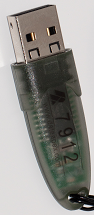
The Rockey USB ND does not require any separate driver installation; once plugged into a USB port, all necessary drivers are automatically installed. For problems encountered in the case of older keys, see the section below.
Make sure that the LED diode in the key is steadily lit. If it is blinking or it is not lit at all, the hardware key may be faulty, and you will need to send it to us for inspection. Please contact us at support@dataapex.com in such case.
Old hardware key types
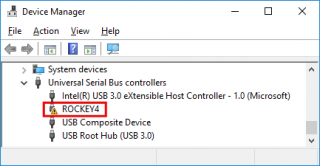
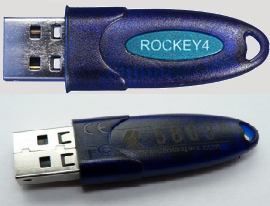
The older hardware key types require drivers to be installed prior to their use. The Rockey USB might not be functional due to installation of a wrong driver. This occurs if the key was connected to the PC before Clarity was installed. This can be solved by manually uninstalling the wrong driver, restarting the PC, and installing the correct one. To do so, the driver installer is located in the Clarity\BIN\HW_DRIVERS\ subfolder.
10.06.2016