Missing hardware key
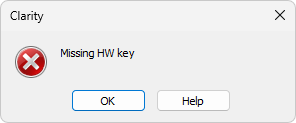
Missing HW key error dialog
If you try to start Clarity without a properly recognized hardware key connected to the PC, an error message saying "Missing hardware key" is displayed and the application will not start. The hardware key must be plugged into a USB port and correctly detected by Windows. This error may occur if the key is not plugged to the PC, or if the key is malfunctioning and is not recognized by the operating system, or if the required USB driver is not installed correctly.
▌ Reason: Your hardware key is not detected by Windows
Solution:
Check if the hardware key is properly inserted in the USB port. Check whether the USB port is working (e.g., try to connect a different device, etc.), check if the hardware key diode is lighting steadily, if blinking or is dimmed try another USB port.
Under normal circumstances, the driver for the currently supplied hardware key is installed automatically when the key is inserted into a USB port; however, if you are using an older type of hardware key, a dedicated driver may be required. Older hardware keys are easily identified by their blue casing (current key is supplied in a transparent grey casing).

Current (left) and older (right) hardware key
Troubleshooting the older hardware key
If none of the steps described in the previous section resolve the issue, the reason may be that you are using an older type of hardware key that requires a dedicated driver.
For this older hardware key in blue casing, a specific driver must be installed for the key to function correctly. This driver is normally installed automatically during the Clarity installation. Plugging in the older hardware key before installing Clarity may lead to problems with installing the drivers.
If problems persist, try reinstalling the driver. For the complete installation procedure and common issue resolutions, refer to Installing a USB hardware key – Older hardware key with blue casing.