This step-by-step guide explains how to move your Clarity project, including measured chromatograms, calibrations, prepared methods, and other related files, to a shared network disk or a shared server backup drive.
This guide assumes that the Clarity in network directories have already been set up and the required structure is available. If not, refer to Procedure A described in the chapter Multiple Stations in Network.
There are two ways to migrate a project. You can use the Archive function in Clarity, which automatically transfers the selected project to the new location, or you can copy the project directory and project file manually using tools such as Windows File Explorer.
For installations operating under GLP or requiring full traceability, the migration must be performed using the Archive function, as only this ensures that the operation is properly recorded in the Audit Trail. Manual copying is not logged and is therefore suitable only for non-regulated environments.
Follow these steps to use the Archive function for this purpose:
- Log in to any Instrument with a project you do not want to move (e.g. some demo project).
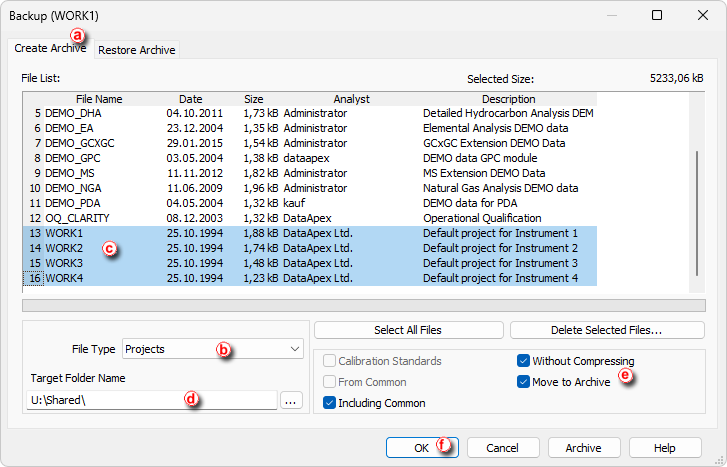
- Use the File - Archive... command. Backup dialog opens on the Create Archive tab ⓐ.
- In the File Type drop-down list ⓑ, select Projects.
- In the File List section, select the project(s) to be migrated (e.g. work1 to work4) ⓒ.
- Under Target Folder Name ⓓ, select the destination of the shared network disk.
- Check the options Without Compressing and Move to Archive ⓔ. When moving projects to the new location for the first time, it is recommended to check Including Common option to also transfer files such as report styles.
- Click OK ⓕ to start the migration. The selected projects will be moved to the specified location (e.g. U:\Shared\) and Backup dialog will close.
- Log in to the Instrument that has its directory set to the shared network. In the Login Dialog, the Select Project drop-down list will display only the migrated projects as well as any projects you created in the previous steps.
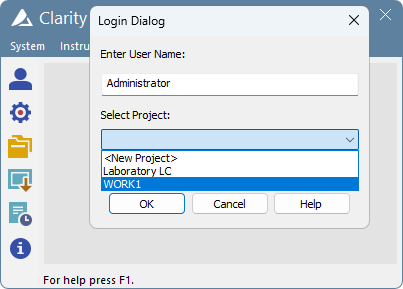
Your Clarity project has been successfully migrated and is ready to use.