By default, Clarity exports data to the folder where the original chromatograms are stored, and imported files are browsed within the current project directory. If you routinely use specific locations, such as shared folders on a network drive, you can define custom default directories in Settings - User Options…, under the Directories tab accessible from the Instrument window.
Once a custom Export Directory is set, all exported files will be saved to that location, regardless of where the chromatograms are stored. Similarly, setting a custom Import Directory ensures that the import dialog opens in the predefined location.
Note:
These settings are saved in the desktop file (.DSK). If multiple users need to work with the same directories, they must either share the same desktop file or configure their settings individually.
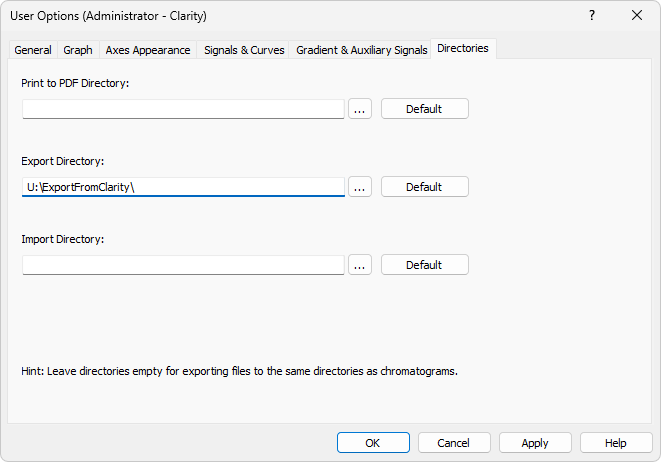
Setting of the export and import directories