SOP - Setting the user rights in Windows 11
Note:
This SOP was prepared and tested on the computer with Windows 11 Pro operating system (English localization), with the latest updates (as of 31.10.2025) installed.
This process must be performed by a person with Administrator privileges (e.g., an IT specialist). It assumes that the computer is freshly installed with no user accounts other than the administrator one. Clarity is supposed to be already installed.
User accounts setup
User accounts can be either local or domain-based (if the computer is part of a domain).
If the computer is part of a domain, existing domain user accounts can be used directly and it is not necessary to create local user accounts. In such case, include these domain users in a group or assign the required permissions as described below.
If no suitable accounts exist, create local user accounts as described below.
- Open Computer Management: Right-click the Start menu and select Computer Management. In the left panel, navigate to Local Users and Groups - Users.
- Create a new user account: Right-click the Users item and select New User... from the context menu. Fill in all required fields in the New User dialog, set a password according to your organization’s policy and click the Create button.
- Repeat this procedure for each additional user you want to add. Close the New User dialog by clicking Close.
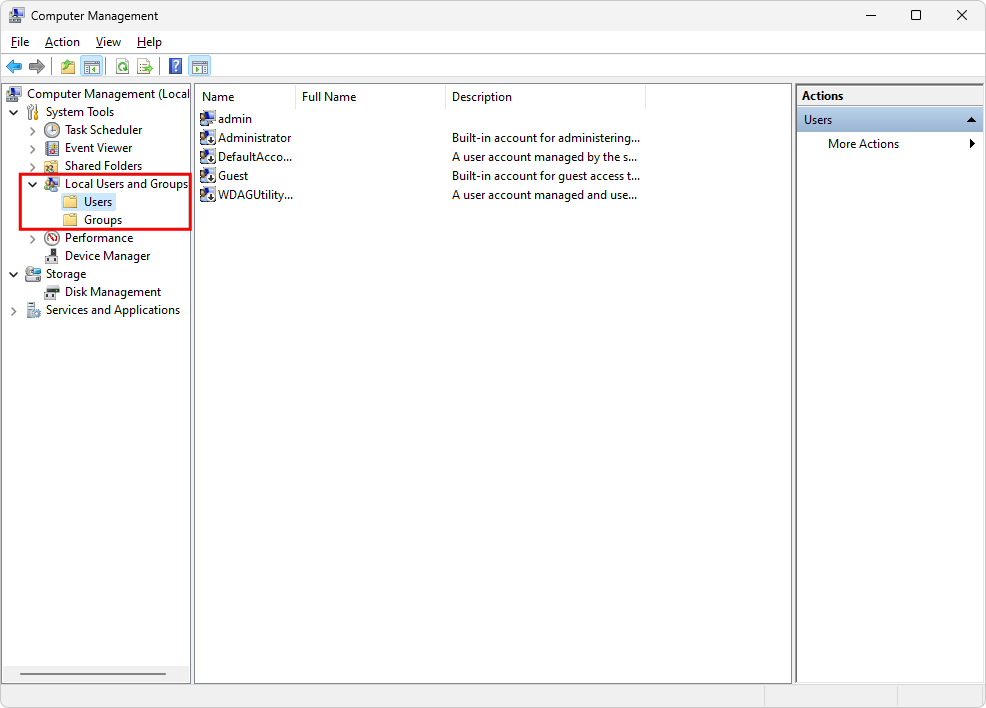
Computer Management
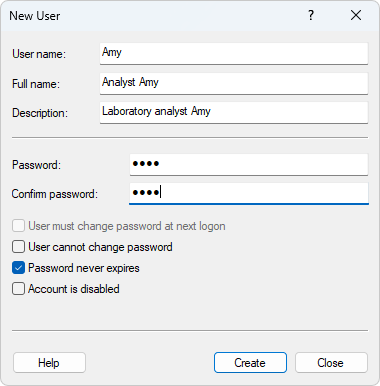
Create New User
Group configuration and management
Creating a group is recommended when multiple users work with Clarity, as it simplifies permission management. However, it is also possible to assign the required access rights directly to individual user accounts.
If the computer is part of a domain, a domain group may be used instead of a local group. In such case, it is recommended to use a dedicated domain group (e.g., for all Clarity users) and assign permissions to this group.
- In Computer Management window, navigate to Local Users and Groups - Groups section.
- Right-click the Group and select New Group... from the context menu and add its description. Then click Add to manage members.
- Click Advanced in Select Users dialog. Select User (Advanced) dialog is opened.
- Click Find Now and select all users you want to add from Search results: list at the bottom of the dialog.
- You can verify which users are members of the group in the group properties.
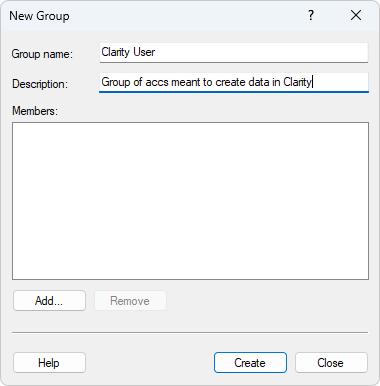
Users Group
Perform the first login
Perform first login for all newly created users. This step is essential — performing it later can compromise the electronic security of Clarity records.
During the first login, the newly created users are automatically added to the Authenticated User group. To ensure proper data protection under GLP, this group must not have access to Clarity subfolders. This is achieved by removing inherited permissions as described in the steps below.
Each user may create a shortcut to Clarity on their desktop for convenient access.
- Log back in as the local Administrator.
- Locate the Clarity installation directory. If the DataFiles subfolder is elsewhere, verify that it is properly setup using System Directories in Clarity.
- Right-click on the subfolder Cfg and select the Properties from the context menu. Switch to the Security tab.
- Select Advanced and window Advanced Security Settings for Cfg opens.
- Click Change permissions button which will invoke new window for settings of permissions. Click Disable inheritance button and new Block inheritance window will be invoked. Click Remove all inherited permissions from this object option which will result in cleared out Permission entry in Advanced Security Settings for Cfg window.
- Click the Add button which will invoke new window for settings of the permissions. Click Select a principal to open Select User or Group dialog.
- Click Advanced... to open advanced dialog view.
- Click Find Now and select the group you created for Clarity users. If you didn't create any, select individual accounts.
- Click OK in the Select User of Group (Advanced) and Select User of Group dialogs.
- Click Show advanced permissions. Select the relevant permissions for the user accounts of those who will run Clarity.
- Repeat this procedure for Administrator user account and SYSTEM. Both should have all privileges.
- Final security settings for Cfg is displayed in image below.
- If needed, the settings can be reviewed for respective users/group from the Security tab in Cfg Properties window.
- Repeat this complete procedure for DataFiles folder for user group (all user accounts of users who should run Clarity) and local Administrator user account in exactly the same manner (SYSTEM permissions are not required here).
- Repeat this complete procedure for Bin folder for user group (all user accounts of users who should run Clarity), local Administrator user account, and SYSTEM in the similar manner. Be careful as permissions setting for users is different (SYSTEM and local administrator both require full control).
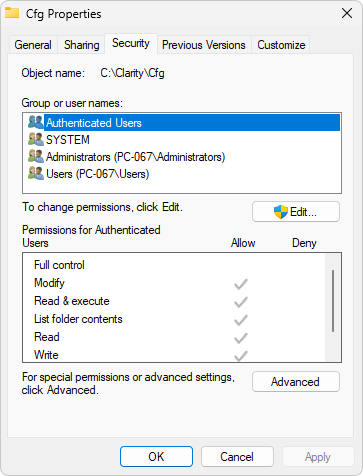
Cfg Folder Security Properties
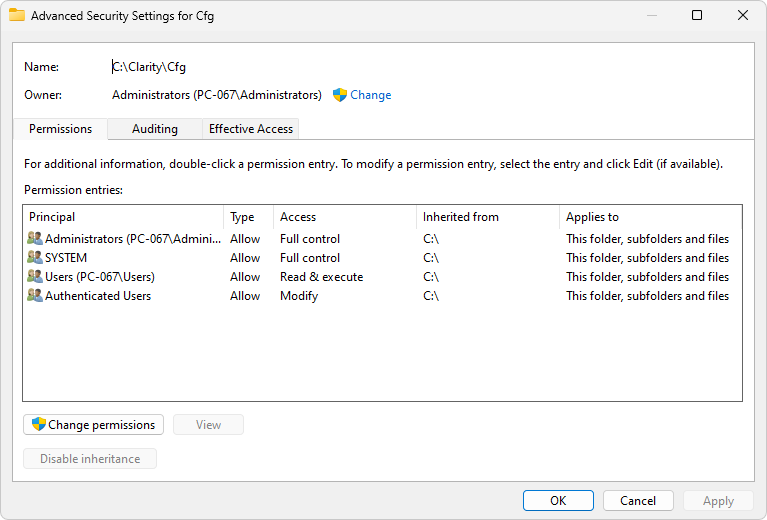
Advanced Security Settings - Initial state
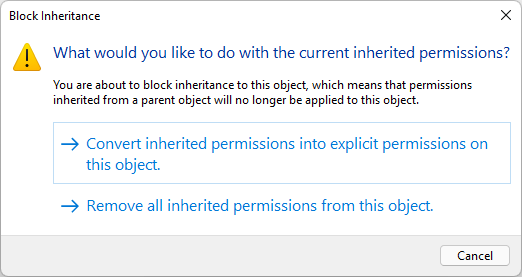
Block inheritance
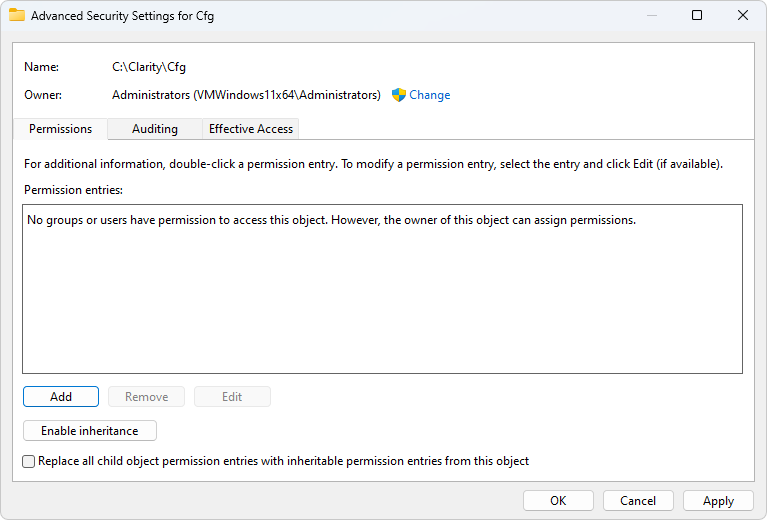
Advanced Security Settings - No Entry
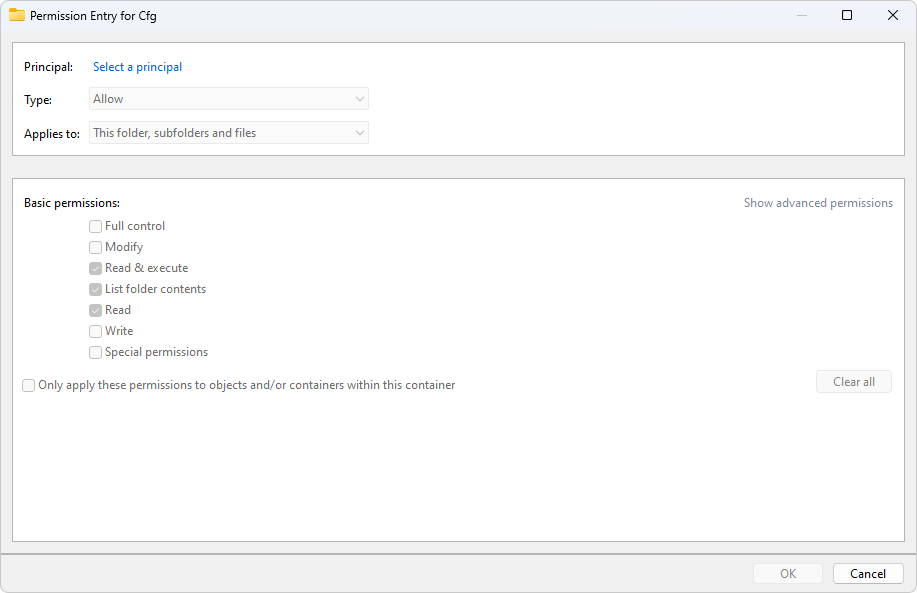
Permission Entry
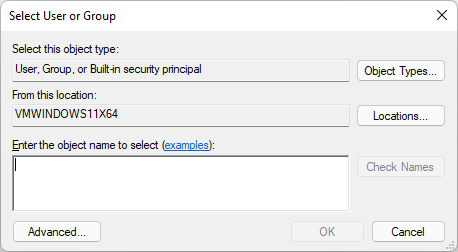
Select User - Initial
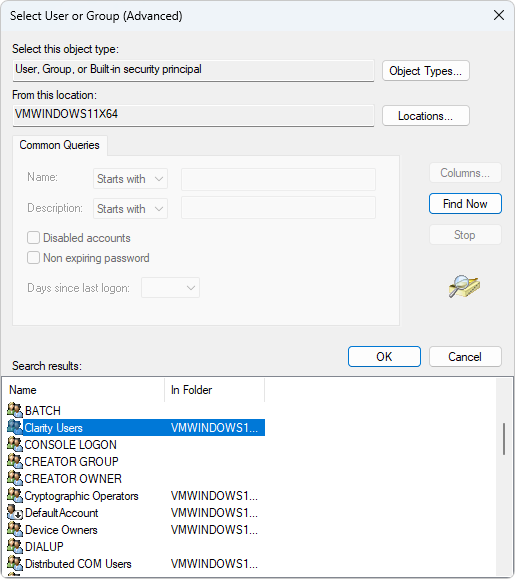
Select User - Advanced
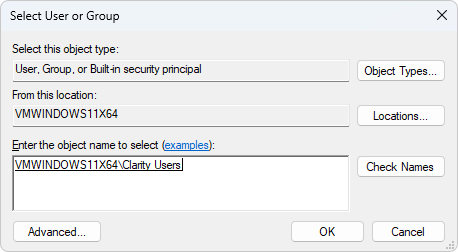
Select User - Final

User Permission Entry
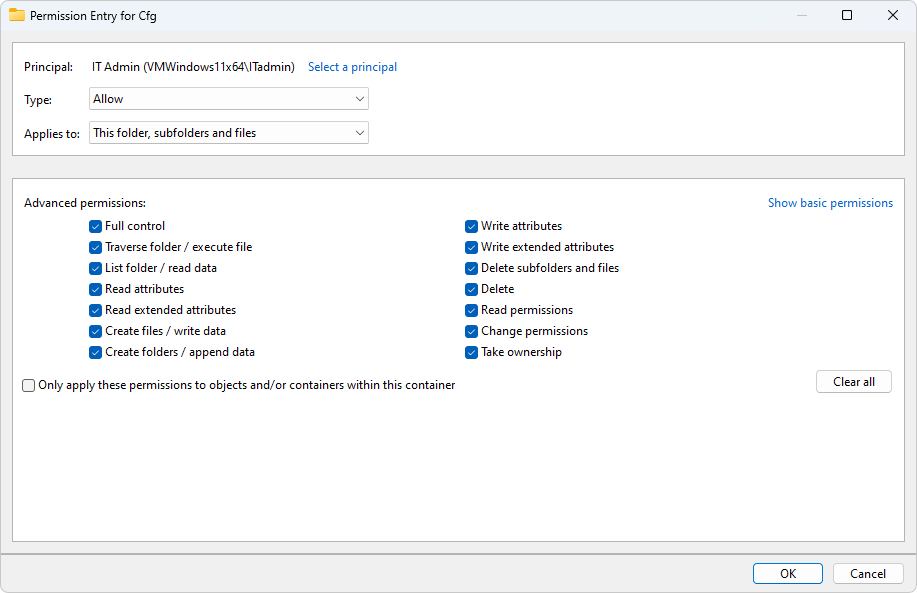
Administrator Permission Entry
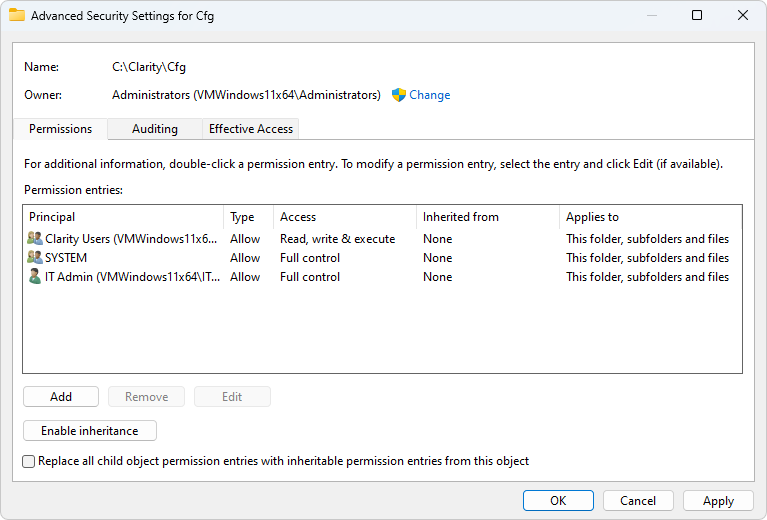
Advanced Security Settings for the Cfg Folder
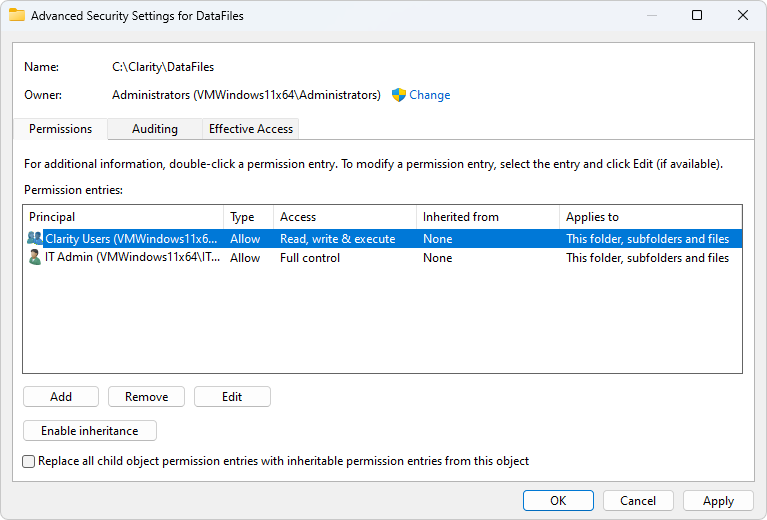
Advanced Security Settings for DataFiles Folder
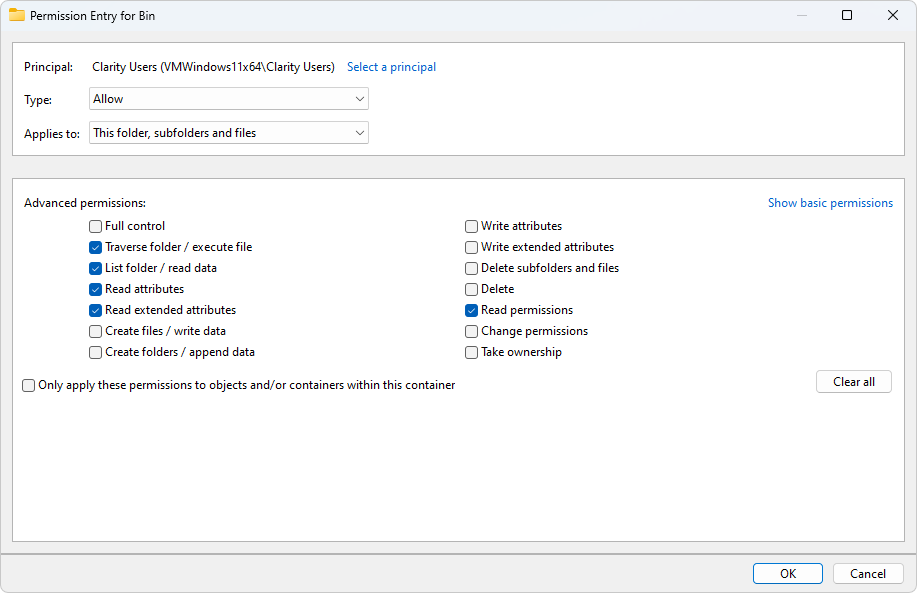
User Permission Entry for Bin Folder
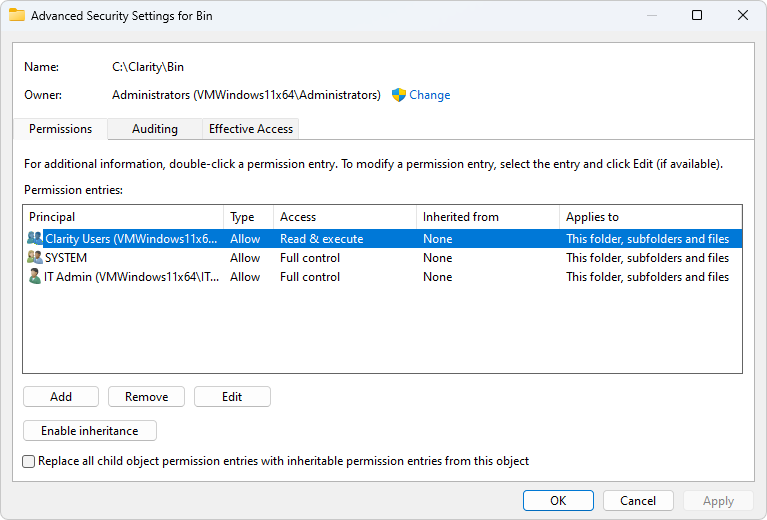
Advanced Security Settings for Bin Folder