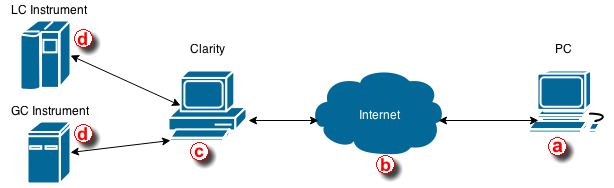
This step-by-step guide describes how to remotely connect to a PC with Clarity ⓒ installed, from another computer, such as your home or office PC ⓐ. A remote connection allows you to take control of the entire computer, including Clarity and all connected instruments. The connection can be established either over the internet or within a local computer network using the Remote Desktop Connection, which is a standard application included in Windows operating systems.
This solution then enables you to:
- Control instruments directly connected to Clarity.
- Monitor data acquisition.
- Evaluate chromatograms in Clarity.
- Work on other projects while keeping the remote session open and periodically check that the system is running smoothly.
Requirements:
- ⓐ PC needs to have Remote Desktop Connection installed and allowed.
- ⓑ A stable internet connection or a reliable local network is required.
- ⓒ PC with Clarity needs to have Remote Desktop Connection installed.
This description is for setting up a remote connection in Windows 11. Dialogs may vary depending upon the Windows version used.
- Enable remote connections on the PC with Clarity ⓒ.
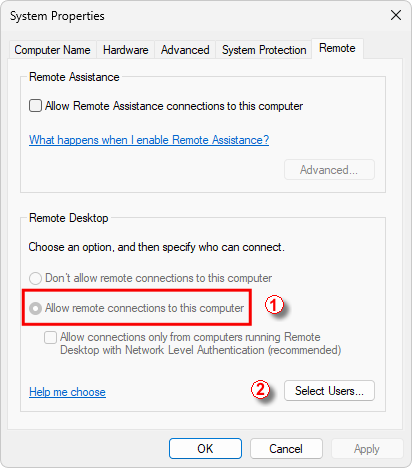
- Open the System Properties dialog and switch to the Remote tab via Control Panel - System and Security - System - Allow Remote Access. (Administrator rights are required.)
- Under Remote Desktop, select Allow remote connections to this computer ①. If the Remote Desktop options are unavailable (grayed out), the computer is likely part of a domain, and the settings are restricted by domain policies. Contact your network administrator to resolve this issue.
- Click Select Users ②.
- In the Remote Desktop Users dialog, click Add.
- In the Select Users or Groups dialog:
- Click Locations... to specify where to search for a user.
- In Enter the object names to select, type the name of the user you want to add and then click Check Name. The user must have an existing profile on this computer. If the user exists, the name will be underlined. If it does not, a User Not Found dialog appears — verify the name and try again.
- When the correct user name is displayed, click OK twice to close the dialogs.
- Find the name of the Clarity PC ⓒ. You will need this information in step 5.
- Go to Settings - System - About
- Locate the Device Name field and note the computer name.
- Ensure the User Account has a password. The user account on the Clarity PC must be password-protected before you can connect via Remote Desktop.
- Go to the User Accounts - Sign-in options.
- Allow Remote Desktop through Windows Firewall on the Clarity PC ⓒ .
- Open the Control Panel and navigate to System and Security.
- Click Allow an app through Windows Firewall under the Windows Defender Firewall section.
- Click Change settings, then select the checkbox next to Remote Desktop.
- Click OK to save the changes.
- If you're using another firewall, make sure the port for Remote Desktop (usually 3389) is open.
- Connect to the Clarity PC ⓒ from the remote computer ⓐ.
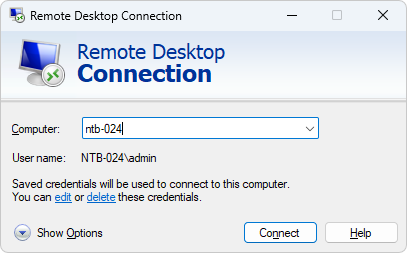
- Open Remote Desktop Connection.
- In the Computer field, type the name (or IP address) of the Clarity PC ⓒ, and then click Connect.
Note:
This guide has been taken from the How-to: "Connect to another computer using Remote Desktop Connection" created by Microsoft Windows.
After successfully connecting, you can work with Clarity as if you were at the laboratory PC. The remote desktop will be presented in a standard window. To end the session, simply close the window.
Possible situations that may arise when using the Remote Desktop Connection:
- If you connect remotely to a PC where you are already logged in, the session will automatically continue where you left it.
- If another user is currently logged in (for example, another analyst), a prompt will appear on that user’s screen asking whether to allow the remote connection. If the user declines, the connection will not be established.
- The remote computer ⓐ must be turned on. It is not possible to connect to a computer that is off. However, there are applications and utilities that allow a remote computer to be started automatically, if such functionality is necessary.