Using Single Compound Search
When you run a Single Compound Search, the Single Compound Search tab of the MS Search dialog opens.
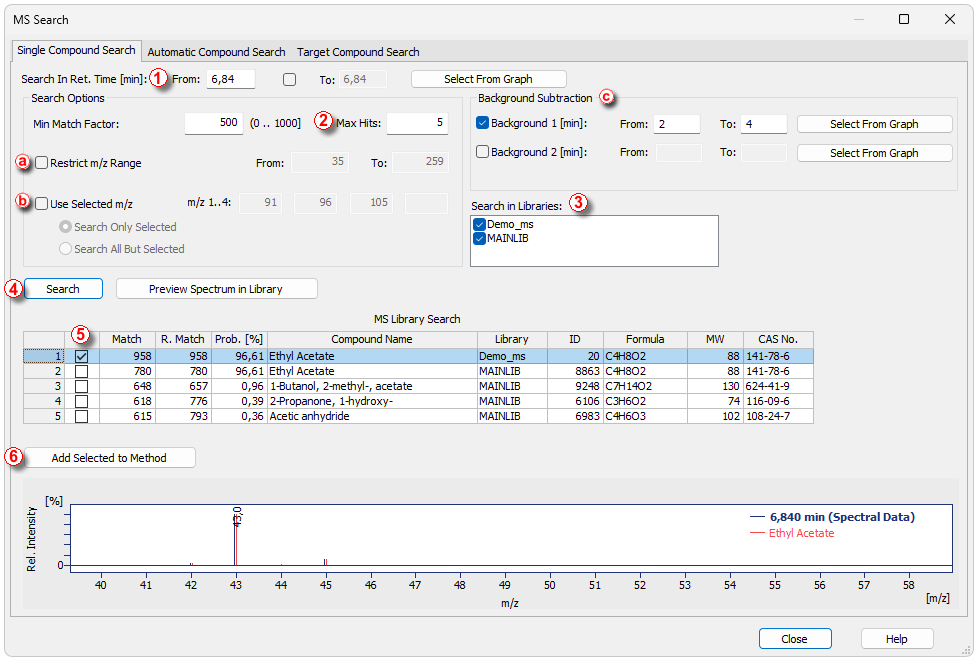
- In Search in Ret. Time ①, you can specify a single retention time or a retention time range in which to search.
- Set Max Hits ② – this defines how many results will be returned to Clarity. This setting applies only if the MS Search application is closed when you press Search.
- Optionally, limit the search by selecting Restrict m/z Range ⓐ and/or Use Selected m/z ⓑ. This can make the search faster but the search may be more inaccurate. Additionally, Background Subtraction ⓒ option may be applied.
- Select the library/libraries to search in using Search in Libraries ③ section. Here, both the Demo_ms and MAINLIB libraries are chosen.
- Click the Search ④ button to start the search.
Note:
Search parameters for the MS Search program are pre-set to Spectrum Search Type - Identity, Quick; Presearch: Off. The values may be changed, please see Appendix for more details.
- Review the results, which are sorted by Match Factor . Click a row to display the matching library spectrum overlaid with the actual spectrum in the graph for visual comparison.
- When you are satisfied with the match (or multiple matches), use the check box ⑤ for the chosen compound and click Add Selected to Method ⑥ to add the compound to the MS Method.